
Printer Setup Services for Epson®-Compatible Devices
Get Your Epson Printer Working in Minutes — EcoTank, Wi-Fi, Drivers & Full Setup Handled for You
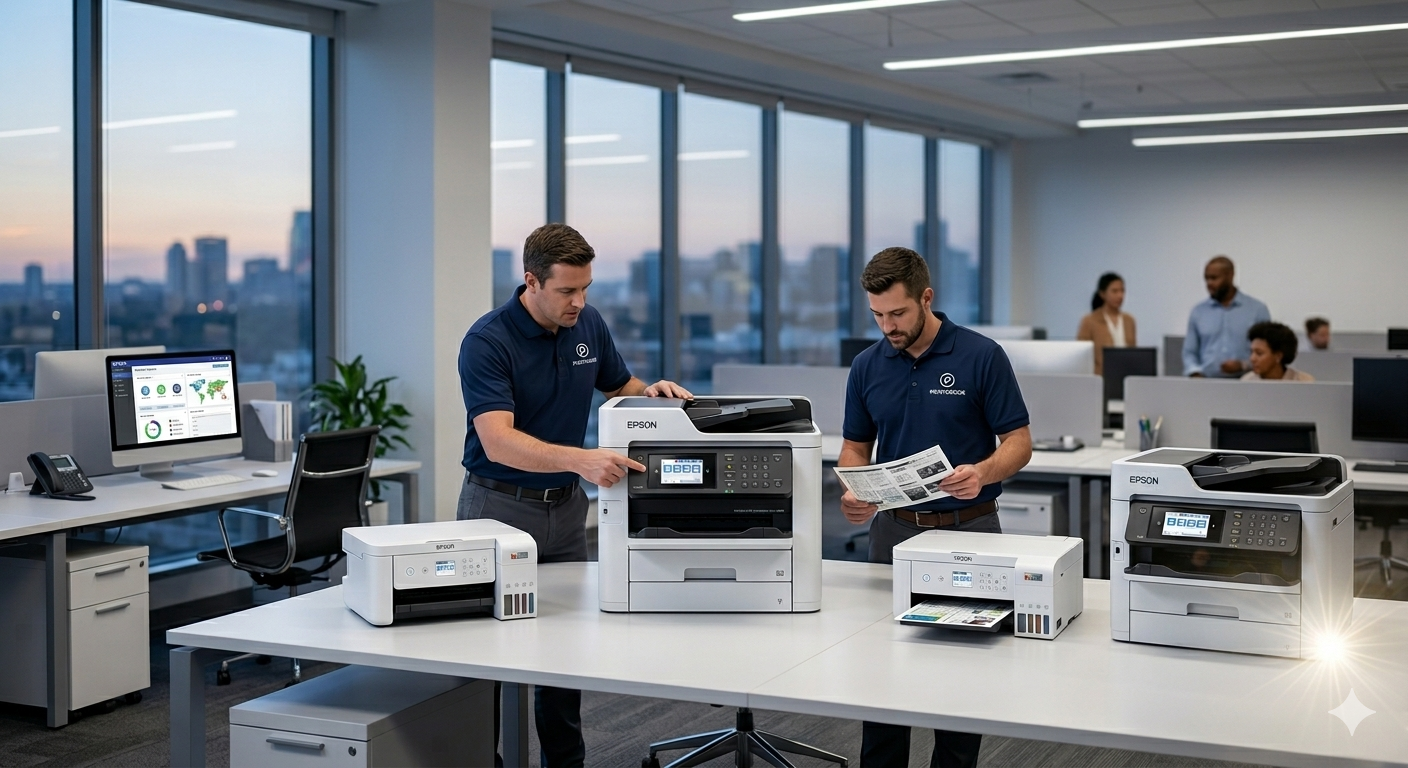
How Would You Like to Fix Your Epson Printer?
Our Epson printer experts are ready — choose the fastest option for you
Chat with Us Live
Instant help from our Epson printer experts. Available 24/7 — no waiting.
Submit Your Printer Issue
Fill a quick form — we’ll send you a personalised Epson setup guide within 24 hrs.
📋 Fill Out Form🔒 Secure • 7-Day Free Trial • 30-Day Money-Back • From $9.99/mo
Setup Instructions for Your Device
Printeroids Steps for Success:
- Power Sync: Plug in and wait for the "Ready" light.
- Network Handshake: Press and hold the Wi-Fi/WPS button until the light blinks.
- Driver Match: Use the button below for the exact Epson driver for your OS.
- Calibration: Run a test print for alignment and density.
Epson Printer Model Series We Cover
Full driver setup, refillable ink guidance, and Wi-Fi configuration for every Epson printer line.
EcoTank Series
Refillable ink tank system — pay once, print thousands. Models: EcoTank ET-2803, ET-3850, ET-4850, ET-16650, ET-5850, ET-2760. Ideal for high-volume home & office printing.
- Ink tank fill procedure & bleed guide
- Full-feature driver for Windows & macOS
- Wi-Fi + Wi-Fi Direct setup
- AirPrint / Epson iPrint mobile configuration
WorkForce Inkjet Series
Fast, business-grade inkjet with duplex & networking. Models: WorkForce WF-2930, WF-2960, WF-4830, WF-7840, WF-3823. High-speed, low-cost for offices.
- Full-feature driver + Epson Connect setup
- Ethernet + Wi-Fi dual networking
- Scan-to-cloud, email & network folder
- Duplex printing & print quality calibration
Expression Inkjet Series
Photo-quality home printing & versatile AiO models. Models: Expression Home XP-4205, XP-7100, Expression Premium XP-8700, Photo XP-970.
- Print head cleaning & nozzle check
- Full-feature driver & Epson Photo+ setup
- Wi-Fi & USB connection guidance
- Photo paper profile & colour management
New Device Integration
Moving your Epson printer to a new device? Printeroids helps you with:
- Automated Wi-Fi handoffs for new routers.
- Installing drivers on Windows 11 and macOS.
- Cloud-print configuration and test page verification.
Network Connectivity Solutions
When communication needs optimization, Printeroids stabilizes your link by:
- Resetting the Windows Print Spooler directory.
- Configuring Static IP reservations for permanent connectivity.
- SNMP Port optimization for real-time status updates.
Wi-Fi & Sync Solutions
Experiencing signal drops? We help you with:
- Fixing 2.4GHz vs 5GHz band invisibility issues.
- Setting up Secure Wi-Fi Direct for guests.
- Bridge configuration for office-wide access.
Hardware & Status Management
- Guided debris removal for internal carriage paths.
- Deep-level hardware resets to clear service notifications.
- Printhead/nozzle health and maintenance guidance.
Service provided by Printeroids Technologies — wesupport.tech is owned and operated by Printeroids Technologies. Not affiliated with any printer manufacturer.
Need the Specific Driver for Your Epson?
Printeroids Driver Updater automatically finds and installs the correct driver for your Epson printer — no manual searching.
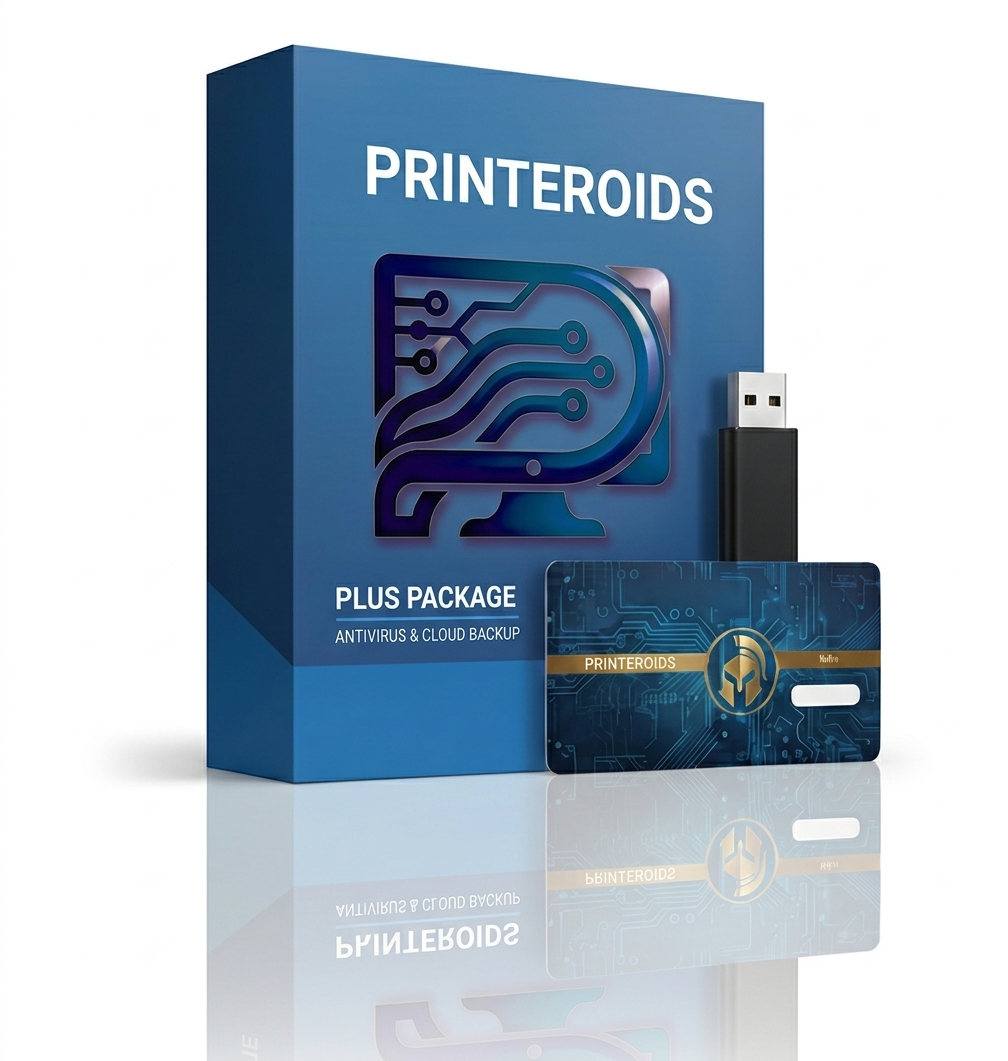 View Printeroids Driver Updater — Pricing & Download
$9.99/mo • Annual $89.99/yr • See full pricing
Paid Service: Professional Technical Consultation ($20/session) is provided by Printeroids Technologies — independent of any manufacturer.
Printeroids Driver Updater for Epson Devices
Epson EcoTank, WorkForce, and Expression printers need specific drivers for optimal ink efficiency and print quality. Printeroids Driver Updater automatically finds and installs the right drivers for your Epson model.
EcoTank Optimization
Detects your Epson EcoTank model and installs drivers optimized for refillable tank systems, ensuring accurate ink level monitoring and efficient printing.
? Complete Package
Installs Epson Scan 2, Smart Panel, Event Manager, and all utilities in one go. No need to download multiple components separately.
Rollback Protection
Backs up current drivers before updating. If a new driver causes issues, restore the previous version with one click.
Automatic Updates
Schedule weekly or monthly scans to keep your Epson printer updated with the latest drivers and firmware releases.
Optimize 0x97 & 0x9A Status
Resolves common Epson status codes including 0x97 hardware status, 0x9A carriage issues, and communication challenges automatically.
Network Deployment
Download Epson driver packages for deployment across multiple workstations, ideal for businesses with several Epson printers.
? 7-Day Free Trial scan ? Windows 11/10/8/7 ? Safe & secure ? 30-day money-back guarantee
Wi-Fi Not Connecting
- Confirm SSID/password; prefer 2.4 GHz networks.
- Try WPS (printer Wi-Fi/WPS → router WPS within 2 minutes).
- Assign a static IP/DHCP reservation to prevent drops.
Network Connectivity
- Restart router → printer → PC; ensure same network.
- Windows: restart Print Spooler; clear stuck jobs.
- Disable "Use Printer Offline" in queue.
New Setup Checklist
- Unbox, load paper, install ink tanks/cartridges, power on.
- Install complete full-feature Epson drivers.
- Print a test page to validate alignment.
Not Printing
- Try another app/document; re-add the printer.
- Verify Standard TCP/IP port; reinstall drivers.
- Run nozzle check/printhead cleaning.
Epson EcoTank & WorkForce Maintenance
EcoTank Ink Management
- Refill timing: Refill when ink reaches lower line, don't let tanks run dry
- Bottle handling: Shake bottles before refilling, use correct color codes
- Air bubbles: Run power cleaning if air enters ink lines
- Tank cleaning: Clean tanks annually with distilled water
Print Quality Optimization
- Nozzle check: Run weekly nozzle checks to catch clogs early
- Head cleaning: Use standard cleaning first, power cleaning if needed
- Alignment: Run alignment after cartridge/tank changes
- Paper settings: Match media type in driver to loaded paper
Preventive Maintenance
- Regular use: Print at least once per week to prevent clogs
- Firmware: Check Epson website quarterly for updates
- Waste ink: Monitor waste ink pad status, service when full
- Environment: Keep in dust-free area, avoid temperature extremes
Where to find your Epson printer model number
- Front/top panel: Often printed near the power/display panel.
- Rear label: Near the power inlet/USB/Ethernet port.
- Inside ink/tank area: Open the access door; model label may be inside.
- Configuration page: Print a Network/Config page from the control panel to see model and IP.
- Epson Smart Panel: App ? Printer Info shows model and status.
What not to do with your printer
- Don’t power off during firmware updates it can brick the device.
- Don’t yank jammed paper follow the jam path to avoid sensor damage.
- Don’t use abrasive cleaners clean with a lint-free cloth; avoid alcohol on rollers.
- Don’t block vents overheating causes fuser/board failures.
- Don’t use non-compatible inks always match exact Epson supplies.
- Don’t ignore low-ink warnings running dry can damage printheads.
Epson Printer FAQs
How do I fix Printer Offline on Windows?
Restart router → printer → PC; uncheck Use Printer Offline; reinstall driver; set a static IP.
My Epson printer won’t connect to Wi-Fi. What now?
Use WPS or manual SSID; prefer 2.4 GHz; move closer to router; set DHCP reservation.
Where is the model number located?
Front/top panel, rear label, inside ink/tank area, or on a printed config page; also in Epson Smart Panel.
How do I install the correct drivers?
Download the full-feature package for your exact model/OS; remove old drivers first.
Print quality issues (banding/fade)?
Run nozzle check and head cleaning; align printhead; use the correct paper profile.
Clean Reinstall (Windows)
- Settings ? Bluetooth & devices ? Printers & scanners ? remove Epson.
- Control Panel ? Devices & Printers ? remove device (if listed).
- Print Management (printui.exe /s /t2) ? remove old Epson packages.
- Reboot and install the full Epson driver package.
Firmware & EWS
- Print Network/Config page ? note printer IP.
- Open http://PRINTER_IP ? check/upgrade firmware.
- Assign Static/DHCP reservation to prevent Offline.
Epson status codes Quick Reference
| Code | Meaning | Resolution |
|---|---|---|
| 0x97 | Internal hardware/printhead | Power cycle; unplug USB; clean head contacts; service if persists. |
| 0x9A | Carriage jam/obstruction | Remove jams; check for debris; power cycle. |
| E-01 | General fatal error | Power cycle; ensure no obstructions; service if repeats. |
| 0xEA | Paper jam | Clear jam; reload paper; clean/inspect rollers. |
| 031006 | Wi-Fi connection failed | Re-enter password; move closer to router; use 2.4 GHz; set DHCP reservation. |
| 0xF1 | Scanner/Carriage error | Check carriage path; reseat cables; service if repeats. |
Get Expert Help With Your Epson Printer — Right Now
Tell us your model and issue. Our Epson printer specialists will reach out within minutes — 24/7.