When a printer outputs completely blank pages, it is almost always an ink/toner or paper delivery issue — not a driver or connection problem. Work through these checks in order.
1. Check Ink or Toner Levels
Check via Printer Software
Open the printer’s app (HP Smart, Canon PRINT, Epson iPrint, etc.) or the system tray icon. If ink is below 10%, replace the cartridge.
Print a Status Page
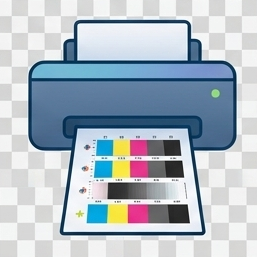
Hold the printer’s power button (varies by model) to print an internal status/test page. If the test page is also blank, the issue is hardware-level.
On inkjet printers, even a “1 page remaining” warning can produce blank pages for certain colors. Replace the cartridge immediately.
2. Remove Protective Tape from New Cartridges
This is the most overlooked cause: new cartridges ship with an orange or pink pull-tab tape covering the ink outlet. If not removed, no ink flows.
- Remove the cartridge from the printer.
- Look for any remaining plastic tape or pull-tab seals on the bottom or side of the cartridge.
- Peel it off completely, reinstall, and test print.
3. Run a Nozzle Check & Head Cleaning (Inkjet)
Print Nozzle Check Pattern
Go to Printer Maintenance / Tools → Print Nozzle Check. If lines are missing or blank, nozzles are clogged.
Run Head Cleaning
Run 1–2 cleaning cycles from Maintenance → Head Cleaning. Print another nozzle check after each cycle. Do not run more than 3 cycles consecutively (uses ink).
4. Check Paper Feed Source & Driver Settings
- In the print dialog, check Paper Source is set to the correct tray (not an empty tray).
- Verify Paper Size matches what is loaded — a mismatch can cause the printer to output blank pages.
- Check that Print in Grayscale is not selected if you need color output.
Print a test page directly from Settings → Printers & scanners → Print a test page. This bypasses the application and confirms whether the issue is hardware or software.
Driver Sending Wrong Print Data?
A corrupted driver can send blank page commands. Printeroids Driver Updater reinstalls the correct version automatically.